

Overview
At the bare minimum, one laptop with one small model downloaded and tested with the internet off.
For a first local AI setup, a desktop application is a simpler path than a household server. LM Studio combines model downloads, chat and local document processing. Its official documentation confirms those functions work offline once the necessary model files are present.
An AI model isn't a current emergency bulletin, verified medical manual or replacement for reading a source. Treat it as a fallible assistant for summarizing, finding passages and organizing a plan. Smaller models can be more practical on a battery-powered laptop, but usefulness and speed depend on the actual workload.
Check the current requirements for your operating system. LM Studio supports Apple Silicon rather than Intel Macs, and Windows x64 requires AVX2. Its recommendations include 16 GB RAM; they aren't a promise that every model or long document will fit. Linux support has its own distribution caveats in the linked requirements.
What you'll need
- A computer supported by the current LM Studio release
- Internet access for the installer and a local model download
- Enough free storage and memory for the selected model
- One short, non-sensitive text-based document with a known answer
- Backup power and a saved copy of important source documents
Tool considerations
LM Studio
- Good fit
- One person starting with a compatible laptop.
- What stands out
- Downloaded-model chat and document processing work offline. The desktop interface is a lower-friction starting point than a Docker deployment.
- The trade-off
- Model size and context still determine memory use. Intel Macs are unsupported; Apple Silicon is supported. Hardware recommendations aren't guarantees.
- Before going offline
- Install and download models while online, then load and test them disconnected. Local-server and LAN sharing are separate optional settings.
Instructions
Check the machine
Read the official system-requirements page and compare it with your operating system, processor and memory. If the machine is unsupported, stop rather than buying a large model download and hoping it will work.
Install the official application
Download the matching installer from LM Studio and finish installation while online. Keep the installer and the version number with your offline-kit notes so you know what you tested.
Download one modest local model
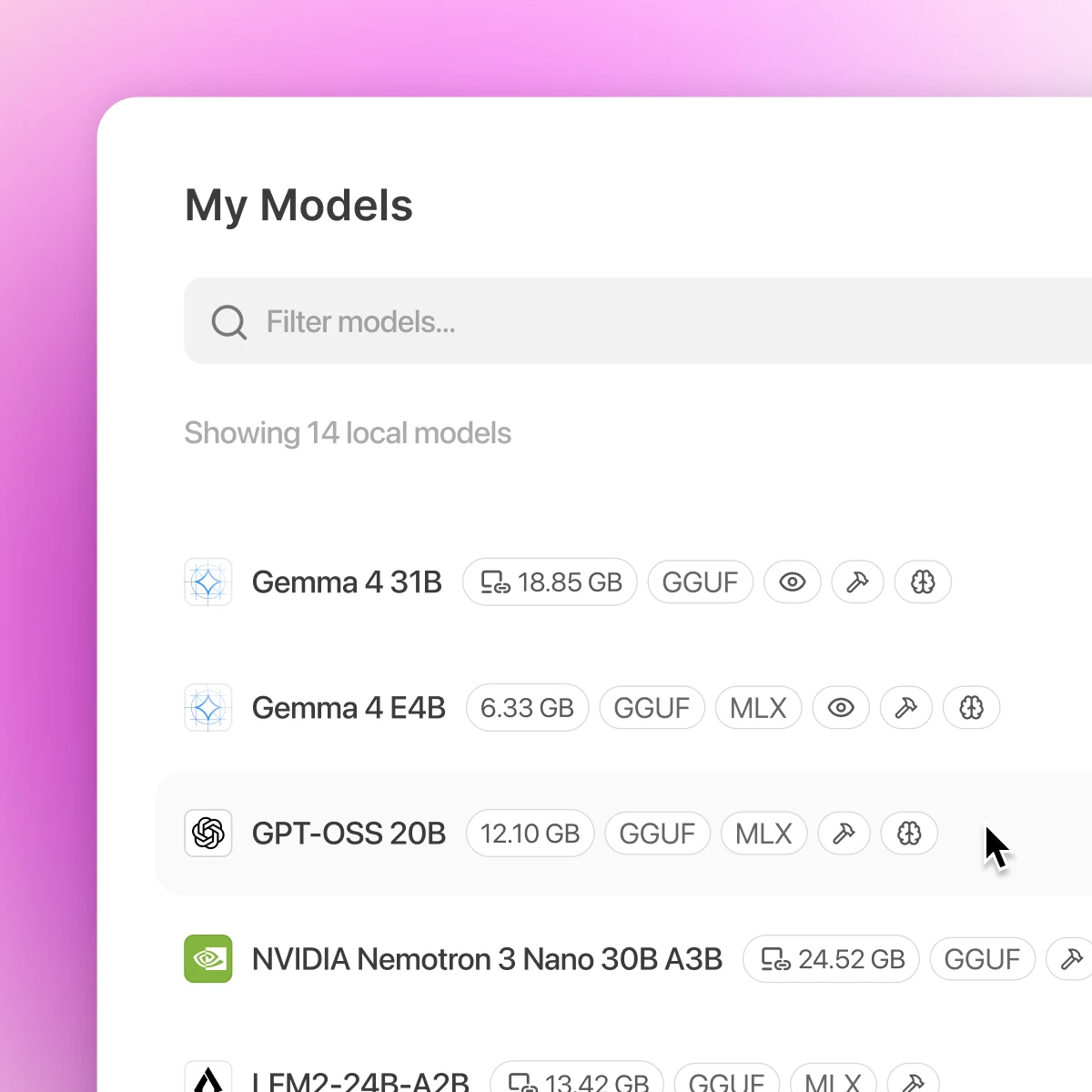
Use the model browser, review the model's license and download size and choose a model suitable for the available memory. Wait for the download to finish. A cloud endpoint or a model listing isn't a local model file.
Load it and try a known task
Open a new chat with the downloaded model. Ask it to reorganize a short packing list that you supply. Time the reply and check it didn't silently add items. Reduce model or context size if loading fails or the computer struggles.
Test a document question
Attach a small readable document and ask a question answered explicitly in it. Request the relevant passage, then open the original and compare. A file that is only a scanned image may need separate OCR before its text is searchable.
Keep desktop mode private
Leave network-server sharing off for single-device use. If you later enable a server, deliberately choose localhost versus LAN access and review its current access controls. Don't assume turning on a server keeps it private.
Disconnect and restart
Turn off internet access, reopen the app, load the downloaded model and start a new chat. Attach a different short document and repeat a known-answer question. Old conversation history alone isn't proof that fresh inference and document processing work offline.
Record the working setup
Write down the app version, model name, model location and test results. Keep original references readable without AI. Measure power use during a normal session rather than sizing a battery from the laptop charger's maximum rating.
Check it works offline
- A fresh chat produces a reply with internet disabled.
- A newly attached document can be queried offline and the answer matches the original.
- The chosen model reloads after restarting the application.
- Your references remain available when the AI app is closed.
Things to watch for
Generated answers can be wrong even with documents attached. Check safety, medical and legal decisions against authoritative references.
Local processing doesn't automatically encrypt saved chats or documents. Protect the device and its backups.
Model discovery, new downloads and updates require internet; prepare them before the outage.
Sources and further reading
Related how-tos
Ask questions of your offline manuals
Use AnythingLLM workspaces to retrieve passages from a small, trusted library while keeping the original documents as the authority.
Read the how-toDownload Wikipedia and references with Kiwix
Choose useful ZIM archives, download them completely and keep an offline reference library that needs no AI model to read.
Read the how-toRun an offline knowledge and maps drill
Restart devices, cut internet access and test fresh work — not just a cached page or an old chat — before depending on the kit.
Read the how-to