

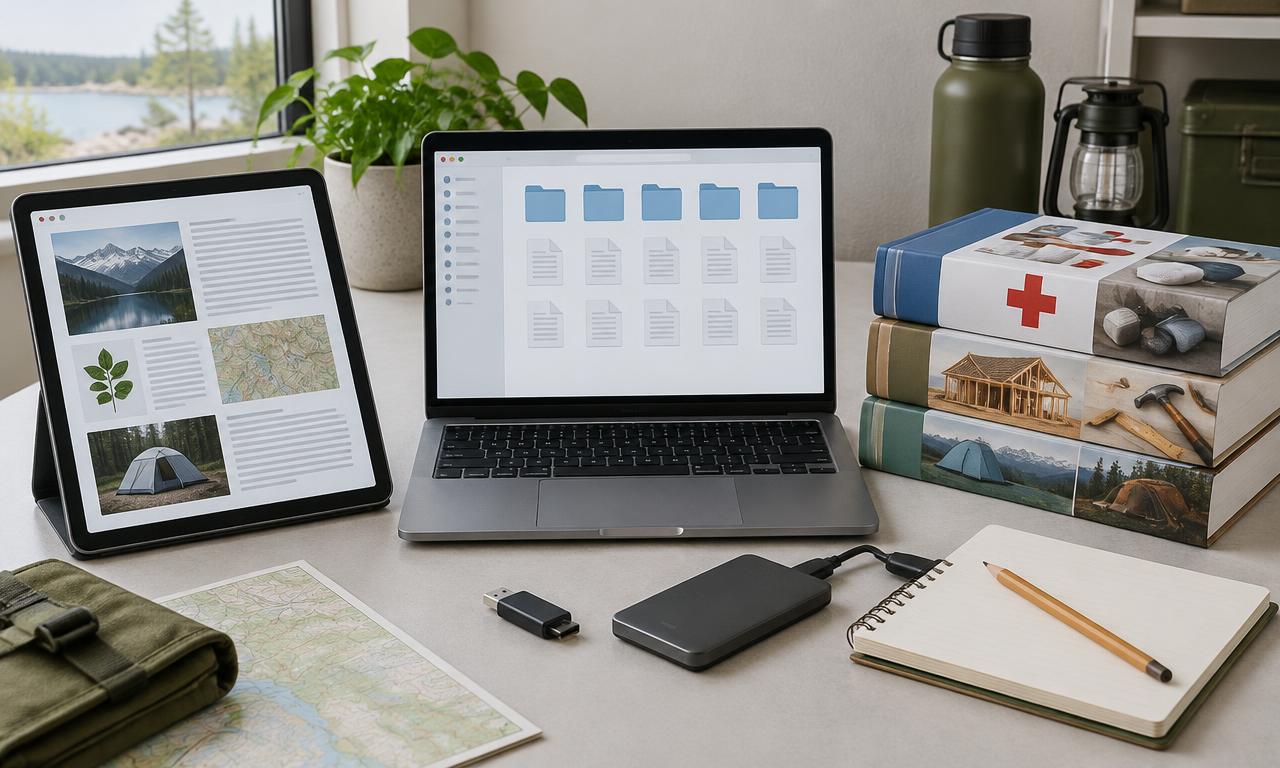
Overview
At the bare minimum, download one medical and one how-to collection. Wikipedia can come later.
Kiwix reads compressed archives called ZIM files. An archive packages a collection of pages for offline reading and search, so you aren't depending on a website being reachable when you need it. It is a direct-reference tool, not an AI generator.
Different archives have different coverage, language, publication dates and sizes. A small text-focused collection may be more useful on a phone than the largest possible encyclopedia. Choose what you can store, inspect and keep current rather than equating a huge download with preparedness.
Use encyclopedias for general reference and keep specific, authoritative safety manuals alongside them. Wikipedia and an archive of old pages aren't current emergency alerts. You can use Kiwix on a device or share an archive with Kiwix Server/Hotspot on a local network.
What you'll need
- Kiwix Reader for your device, from its official downloads
- Internet and enough free space for the chosen ZIM files
- A list of subjects and languages your household needs
- Backup storage for archives you can lawfully copy
- A PDF reader and selected authoritative manuals outside Kiwix
Instructions
Make a short reference list
Choose general reference, household repair, food preservation and region-relevant material. Identify the publisher and version of safety manuals separately. Don't assume every subject has a suitable Kiwix archive.
Install the right Reader
Use the official Kiwix applications page to get the Reader for your operating system. Open it while online and check the archive-download or file-opening workflow for that platform.
Inspect the archive listing
Choose the right language, date, coverage and download size. Some archives omit pictures or include only a subset of articles. Leave space for future copies and updates rather than filling the disk with the first download.
Complete one download
Download a modest archive first and wait for completion. Open it in Kiwix and visit several pages. If saving a ZIM separately, record its location; a download shortcut or catalog listing isn't the archive itself.
Check the content you need
Search for several realistic questions and open the resulting pages. Check that images, tables and linked pages you rely on are actually in the archive. Note gaps and add separate PDFs where necessary.
Prepare another device
If you want a second offline copy, install a compatible Reader there and copy the actual ZIM as permitted by its content license. Open that copy and test it. A drive format or cable that works on one device may not work on another.
Choose local reading or sharing
For simplicity, keep most-used archives directly on a phone or laptop. Kiwix Server/Hotspot can serve archives over a LAN, but that adds a server and router to the power plan. Keep a device-local copy for network failure.
Disconnect and use it
Disable internet and start the Reader again. Search for a new term, open pages and inspect a bookmarked subject. Repeat on the backup device, then record archive dates and a reminder to review the collection periodically.
Check it works offline
- The archive opens and a new search works with internet disabled.
- Required tables, images and topics are present rather than just linked online.
- You know where the ZIM file and its backup are stored.
- Critical manuals are readable separately from Kiwix and AI.
Things to watch for
Downloaded archives are dated snapshots. Use official broadcasts for changing conditions.
Kiwix's software license doesn't automatically grant redistribution rights to every archive. Check the content license.
Keep life-safety guidance from authoritative publishers and verify its current edition.
Useful equipment
Portable SSD
For a second copy of archives and documents. Capacity depends on the files you choose; encryption is a separate requirement.
See on Amazon.caUSB drive
A compact additional copy of important papers. Check that it opens on every device you intend to use.
See on Amazon.caAmazon.ca search links; no hands-on endorsement or guaranteed compatibility. As an Amazon Associate I earn from qualifying purchases.
Sources and further reading
Related how-tos
Save and protect important offline documents
Build a readable reference folder, separate private records, and verify an encrypted backup you can unlock without the internet.
Read the how-toBuild an offline knowledge server with N.O.M.A.D.
Put references, learning materials, regional maps and optional AI on one household server — without confusing a local network with the internet.
Read the how-toRun an offline knowledge and maps drill
Restart devices, cut internet access and test fresh work — not just a cached page or an old chat — before depending on the kit.
Read the how-to