

Overview
At the bare minimum, a spare computer and a few downloaded collections. You can grow it from there.
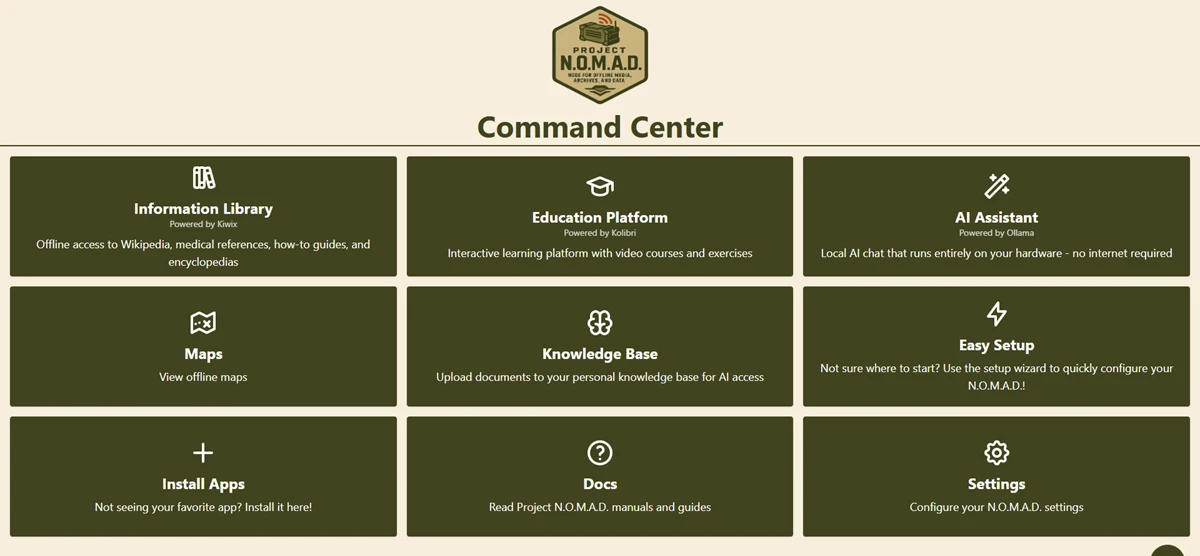
Project N.O.M.A.D. is a management layer for an offline knowledge station. It brings together tools including Kiwix for reference archives, Kolibri for education, regional ProtoMaps, notes and an optional Ollama/Qdrant AI document stack. The practical attraction is one place to manage a collection, not an AI that knows everything.
The server runs on a computer and is opened in a browser. A second device can use it over home Wi-Fi even when the internet connection is down, provided the server, router and client still have power. The downloaded contents are what make it useful: installation alone doesn't give you every book or map.
The documented baseline is a 2 GHz dual-core processor, 4 GB RAM and 5 GB free storage, with 10 GB advised for a comfortable installation. That isn't an AI-and-library sizing promise. The project's AI-oriented optimal example lists 32 GB RAM and 250 GB SSD space with stronger CPU/GPU hardware. Choose content and models before committing to a machine.
What you'll need
- A supported x86 computer running Debian-based Linux on bare metal
- An internet connection for installation and initial downloads
- SSD capacity for your chosen archives, maps and any AI models
- A trusted private router or access point for sharing
- A backup and a power plan for the server and network
Tool considerations
Project N.O.M.A.D.
- Good fit
- A shared library on a dedicated Linux mini PC.
- What stands out
- Brings Kiwix, Kolibri, maps and an Ollama-based AI stack under one browser interface. AI is optional: references still matter on their own.
- The trade-off
- More involved than a desktop app. Official support centres on x86 Debian-based bare-metal Linux, not Raspberry Pi or macOS. No built-in authentication.
- Before going offline
- Download content first. Keep it on a trusted LAN; map viewing/search isn't turn-by-turn phone navigation. Custom AI endpoints can be remote.
Instructions
Check support before buying
Read the current repository requirements. Raspberry Pi/ARM and macOS aren't officially supported, and virtual machines aren't an officially supported deployment. An old x86 desktop may be useful, but its model performance is something to measure, not assume.
Back up the computer
Copy important files somewhere else and verify the copy opens. Installing an operating system can erase a disk. Use a dedicated machine if you don't want the offline station interfering with your everyday computer.
Use the official installer
Follow the linked N.O.M.A.D. installation guide for the current release. It downloads a shell installer and runs it with administrator privileges. Inspect that script before running it and don't substitute an installer from an unrelated website.
Open the management page
On the server, open http://localhost:8080. From another device on the same network, use http://DEVICE_IP:8080, replacing DEVICE_IP with the server's actual local address. Record that address on paper; localhost on a phone means the phone itself.
Build a small useful collection
Complete setup and download a manageable Kiwix reference archive first. Open several articles, search within the archive and check its date. Add education content deliberately instead of downloading a large collection nobody has time to inspect.
Add regional maps
Download relevant regions and test viewing and search. The documented built-in map capability is viewing/search, not a substitute for offline turn-by-turn navigation. Prepare Organic Maps or OsmAnd separately on your phone.
Make AI an optional second step
Download a model appropriate for the machine and prepare document retrieval if needed. Confirm the AI endpoint is on your own hardware: a custom OpenAI-compatible endpoint could be remote. Begin with non-sensitive documents and verify answers against the source text.
Keep the network private
N.O.M.A.D. has no built-in authentication. Don't port-forward it, expose it to the public internet or put it on untrusted guest Wi-Fi. Decide who can reach the local network before adding any personal records.
Run a real outage drill
Restart the server, disconnect the router's WAN/uplink and leave local Wi-Fi powered. Disable cellular data on the client, open the recorded LAN address and test references, maps and a new AI question. Note failures and repeat after fixing them.
Check it works offline
- Reference search works after a host restart without internet.
- A second device reaches the server over the private LAN with cellular data disabled.
- Downloaded maps open, and AI/document queries work if you enabled them.
- The server and router both have a measured backup-power plan.
Things to watch for
I haven't run this setup myself yet. It's pulled from the official guides, not a hands-on review.
No telemetry doesn't mean no outbound requests: the project documents connectivity checks, and user-configured services can be remote.
Keep identity and medical records off an unauthenticated shared library. Store them separately with appropriate encryption.
Useful equipment
x86 mini PC
Check Linux compatibility, memory and storage against the official requirements. Baseline server hardware isn't a guarantee of useful AI speed.
See on Amazon.caPortable SSD
For a second copy of archives and documents. Capacity depends on the files you choose; encryption is a separate requirement.
See on Amazon.caRouter backup power supply
Check voltage, polarity, plug and output against your router before buying. A powered server is no use if the Wi-Fi is off.
See on Amazon.caAmazon.ca search links; no hands-on endorsement or guaranteed compatibility. As an Amazon Associate I earn from qualifying purchases.
Sources and further reading
Related how-tos
Download Wikipedia and references with Kiwix
Choose useful ZIM archives, download them completely and keep an offline reference library that needs no AI model to read.
Read the how-toPrepare offline maps and alternate routes
Download connecting regions in Organic Maps or OsmAnd, save destinations and test search, routing and location without mobile data.
Read the how-toRun an offline knowledge and maps drill
Restart devices, cut internet access and test fresh work — not just a cached page or an old chat — before depending on the kit.
Read the how-to